Sign up & onboarding
Create an account so you can edit pages, upload photos, and submit new cultivars. Here's the full flow plus how to manage your profile afterwards.
Creating an account
You can sign up with email + password, or with a single click via Google or Apple sign-in.
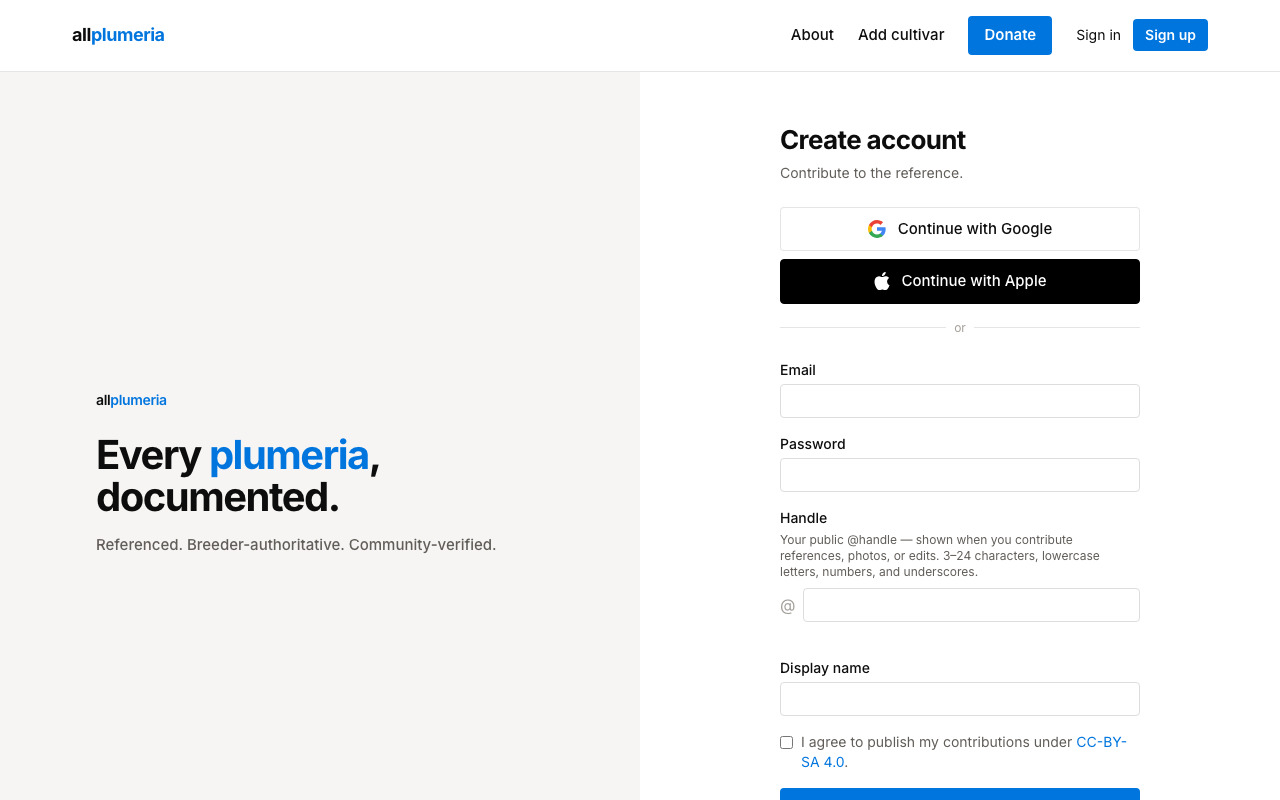
- 1Click ‘Sign up’ in the top-right user menuYou can also navigate to
/signupdirectly. - 2Pick a sign-up methodEmail + password works for everyone. OAuth (Google or Apple) is faster and skips the email-verification step.
- 3Verify your email (password sign-up only)Watch for a confirmation message. Click the link, then return to the login page and sign in.
- 4Complete onboardingThe first time you log in, you'll be sent to the onboarding page to pick a handle and accept the licence. You can't use the rest of the site until both are done.
Handles
Your handle is the short public name attached to every contribution you make — it appears on references you submit, photos you upload, and edits you propose. Handles must be unique. The form checks availability live.
Licence
Contributions are released under an open licence so the wiki stays freely usable. You only have to accept once.
Your account dashboard
Once signed in, your name appears in the top-right user menu. Open it and click Account to land on your dashboard with three sections.
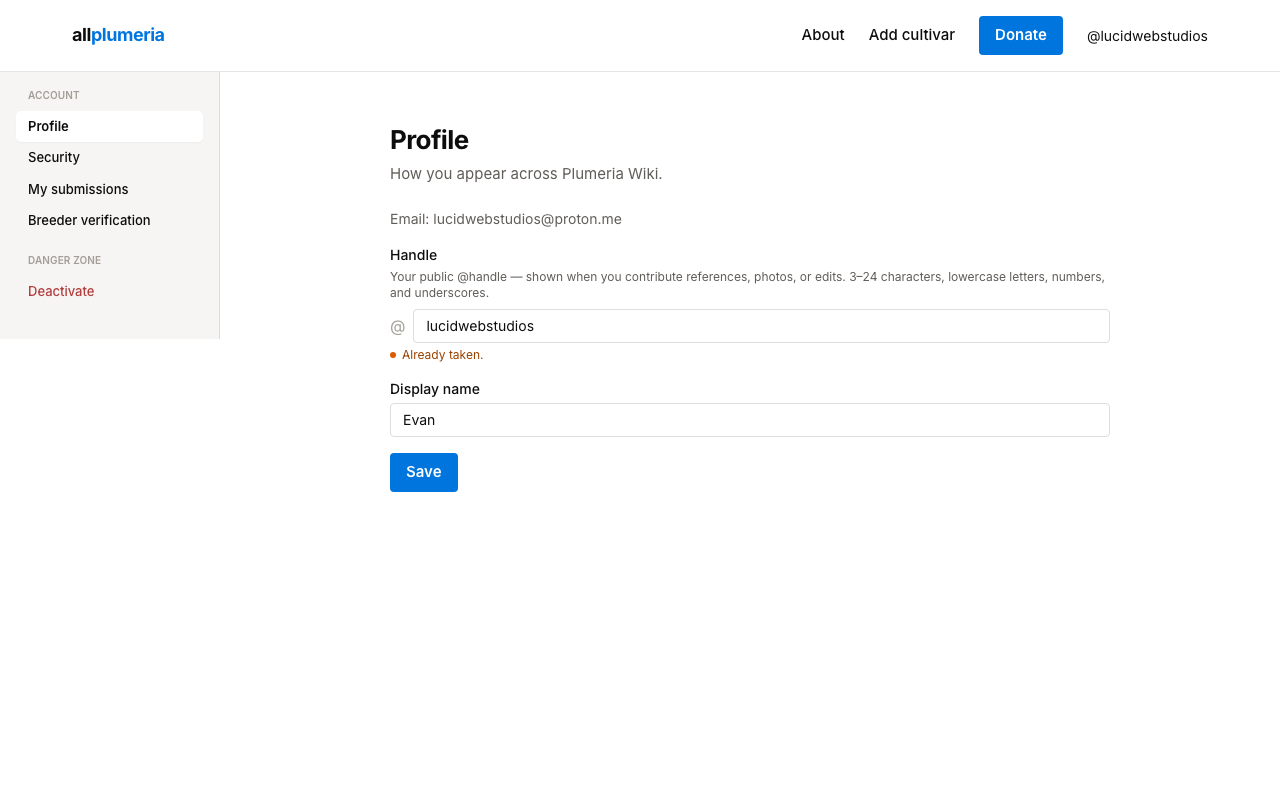
Profile
Edit your display name, bio, and avatar URL. Your handle is fixed (it's how your past contributions are credited).
Security
Change your password and see linked OAuth providers. If you signed up with Google or Apple you can add a password later.
My submissions
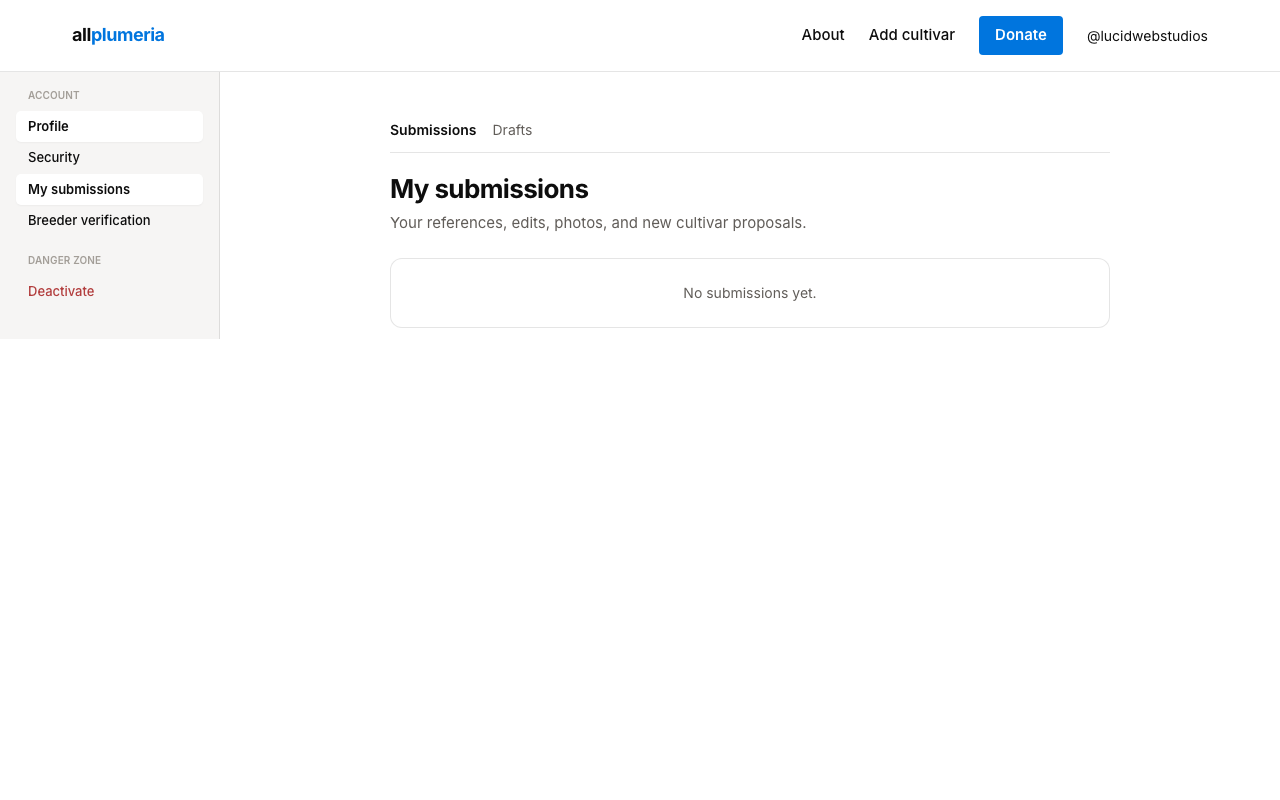
A running list of every edit, photo, or new-cultivar submission you've made and its current status (pending, approved, changes requested, rejected). When admins respond to one of your items, a dot appears on the user menu so you don't miss it.
Deactivating your account
The Danger zone link lets you deactivate your account. Your past contributions stay (the data they added is part of the wiki) but you can no longer log in. Reactivation requires admin help.
Deleting your account
Want a full account deletion rather than a deactivation? We don't have a self-serve button for that yet, but admins can do it on request. Open the contact paths on Help & FAQ — flag any of your submissions with a short note asking for account deletion and an admin will pick it up.
One thing to know up front: any approved contributions you've made — edits, references, photos — stay attached to the cultivar pages even after the account is removed. That's how a wiki works: contributions belong to the page, not to a personal feed. What gets deleted is your account record (email, profile, handle, login linkage).