Anatomy of a cultivar page
A walkthrough of every block on a cultivar detail page so you know what each one means and where to contribute.
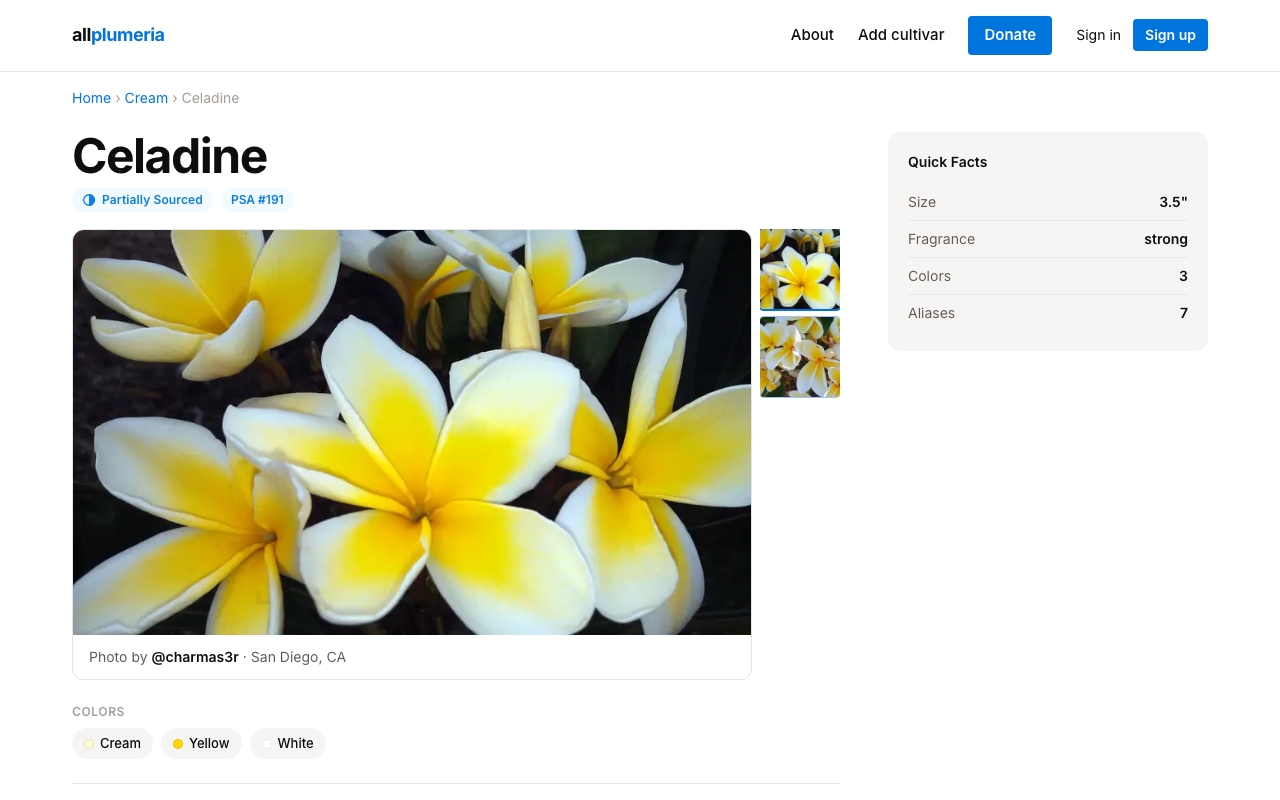
1. Title and quality badge
The cultivar's canonical name sits at the top, followed by a quality badge that signals how trustworthy the page is at a glance. There are three tiers — read Quality tiers for a full breakdown.
2. PSA number
When a cultivar has been registered with the Plumeria Society of America, its PSA number appears as a blue pill next to the badge. PSA registration is a strong primary source.
3. Hero photo gallery
Up to a few prominent photos appear right under the header. Click any photo to open a full-screen lightbox; use the arrow keys to step through the rest.

4. Description and structured sections
The body of the page is broken into named sections:
- Description — narrative summary of the cultivar.
- Appearance — bloom shape, petal arrangement, tones.
- Bloom — flowering season, productivity, longevity.
- Fragrance — descriptive scent profile.
- Growth & Foliage — habit, leaf shape, growth rate.
- Cultivation Tips— what experienced growers wish they'd known.
- Provenance — origin story and any documented history.
When you're signed in as a contributor, every section has an edit affordance — see Editing cultivar pages.
5. Section photo strips
Photos uploaded into a particular section (Appearance, Bloom, Growth, Cultivation) appear as a horizontal strip right under that section's heading. This keeps photos contextual to the information they illustrate.

6. Details panel
Compact key/value table for short structured fields — Hybridizer, Parentage, Growth Habit, Species, Sets Seed, Source, PSA #, Size, Fragrance Strength.
7. References
Every claim on a cultivar page should be backed by a reference. The References block lists each source attached to the cultivar with attribution to the contributor who added it. See References & citations.
8. Quick Facts sidebar
On wide screens the right sidebar shows a Quick Facts panel — Size, Fragrance, color count, alias count — for fast scanning.
9. Aliases (AKA)
Below the title block, any alternate names are listed. Each alias carries a small label saying whether it's a misspelling, an older name, or an alternate trade name.
10. Anecdotal notes
When growers contribute first-hand observations, they appear in a collapsed Anecdotal notessection. These are deliberately separate from the verified description because they carry one person's perspective rather than a sourced fact.
11. Revision history
A small View revision history link above the references opens a chronological log of every change to the page, who made it, and the diff. Admins can roll back specific revisions.
12. Similar cultivars
The footer of the page surfaces up to four cultivars that share the most colors with this one — useful when you're comparing look-alikes.