Editing cultivar pages
Every field on every cultivar page can be edited by signed-in contributors. Edits go to a queue for admin review (auto-approved if you're a verified breeder of that cultivar).
How field editing works
The wiki uses field-level editing — instead of a single big edit screen, every field has its own pencil icon. Click it, change the value, stage it, then submit when you're happy. You can stage multiple fields and submit them as one batch.
- 1Sign in as a contributorYou need a Contributor role or higher. Sign upif you haven't.
- 2Open any cultivar pageHover (or tap on mobile) any field to see the pencil icon.
- 3Click the pencil to editThe field becomes a small inline form. Update the value, optionally attach a reference URL, and click Stage.
- 4Stage as many edits as you wantA floating bar at the bottom shows everything you've staged. You can unstage individual changes from there.
- 5Submit the batchClick Submit changesin the staged-changes bar. If you're a verified breeder of this cultivar, the changes apply immediately. Otherwise they go to the admin review queue.

Editing list fields (colors, aliases)
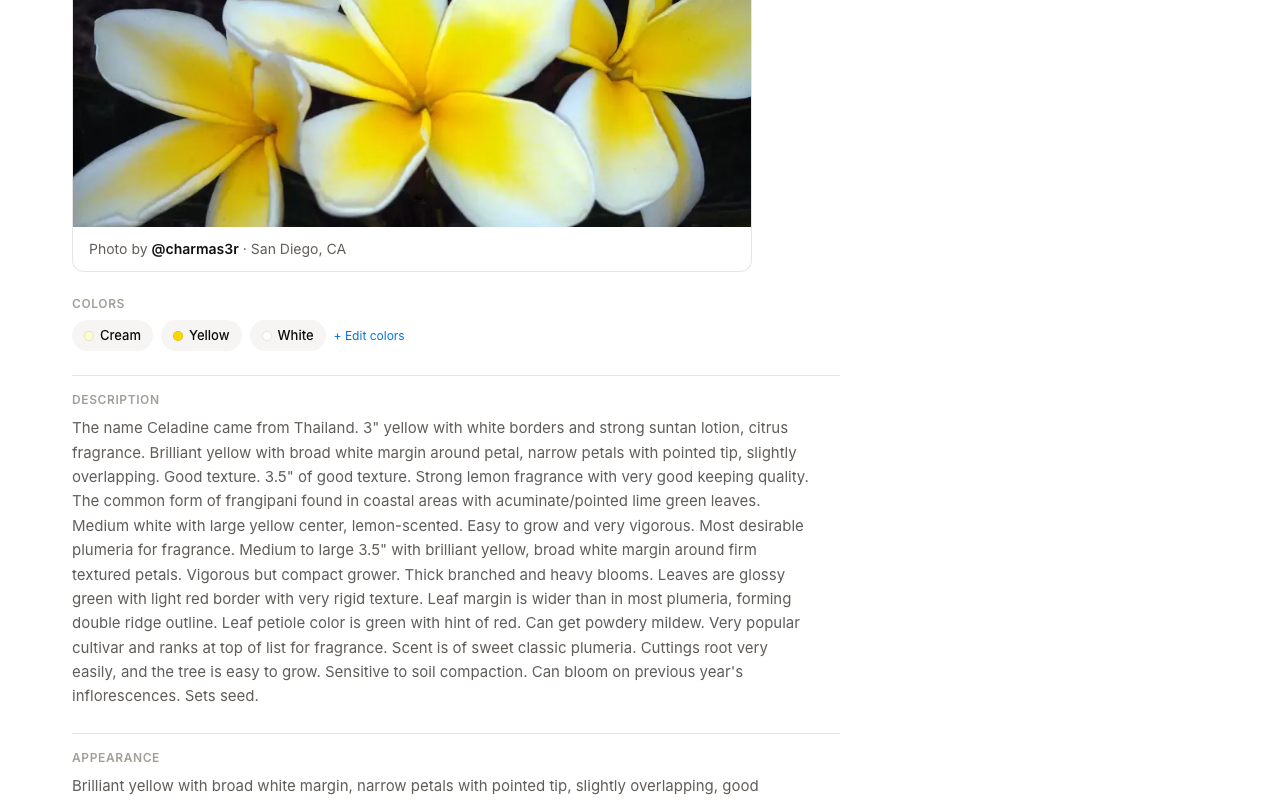
Colors and aliases are list fields. Click their edit icon to add new entries, remove existing ones, or rename. Each pending entry appears as a removable pill so you can review before submitting.

What happens after you submit
- Verified breeder of this cultivar — your changes apply immediately, no review needed. The page updates the moment you submit.
- Everyone else — the submission enters the admin review queue. An admin can approve (your changes go live, the page revises), reject (no change applied), or request changes — which sends the submission back to you for revision.
You can watch the status of every submission you make from Account → My submissions. When an admin responds, a small notification dot appears on the user menu so you don't miss it. Rejected submissions show the admin's reason inline — open the row to read it and decide whether to revise and re-propose.
What happens when two contributors edit the same field
Field-level submissions are independent. If you and someone else both propose a different value for the same field, both proposals sit in the queue side by side — an admin picks one, rejects the other (with a note), and the page reflects the chosen value. The Pending pill on the field tells you how many competing proposals are queued so you can decide whether to add another one or wait.
Which fields can I edit?
Every section heading and detail in the body of a cultivar page is editable — description, appearance, bloom, fragrance, growth & foliage, cultivation tips, provenance, hybridizer, parentage, growth habit, species, sets seed, source, PSA #, size, fragrance strength, colors, and aliases all have a pencil icon when you hover.
The canonical nameof a cultivar is the one thing you can't change with the field editor — renames are handled through alias additions and (when needed) admin-driven merges. See Browse & search for how aliases work.
What admins see
Pending edits show up in the admin queue grouped by submission. An admin can approve all changes, reject them, or request changes back to you — at which point your submission moves to Changes requested and you can revise and resubmit.
Pending pill
When a field has a pending submission against it (yours or someone else's), a small Pending pill appears next to it. Hovering tells you how many submissions are queued. This avoids duplicate edits piling up on the same field.

Revision history & rollback
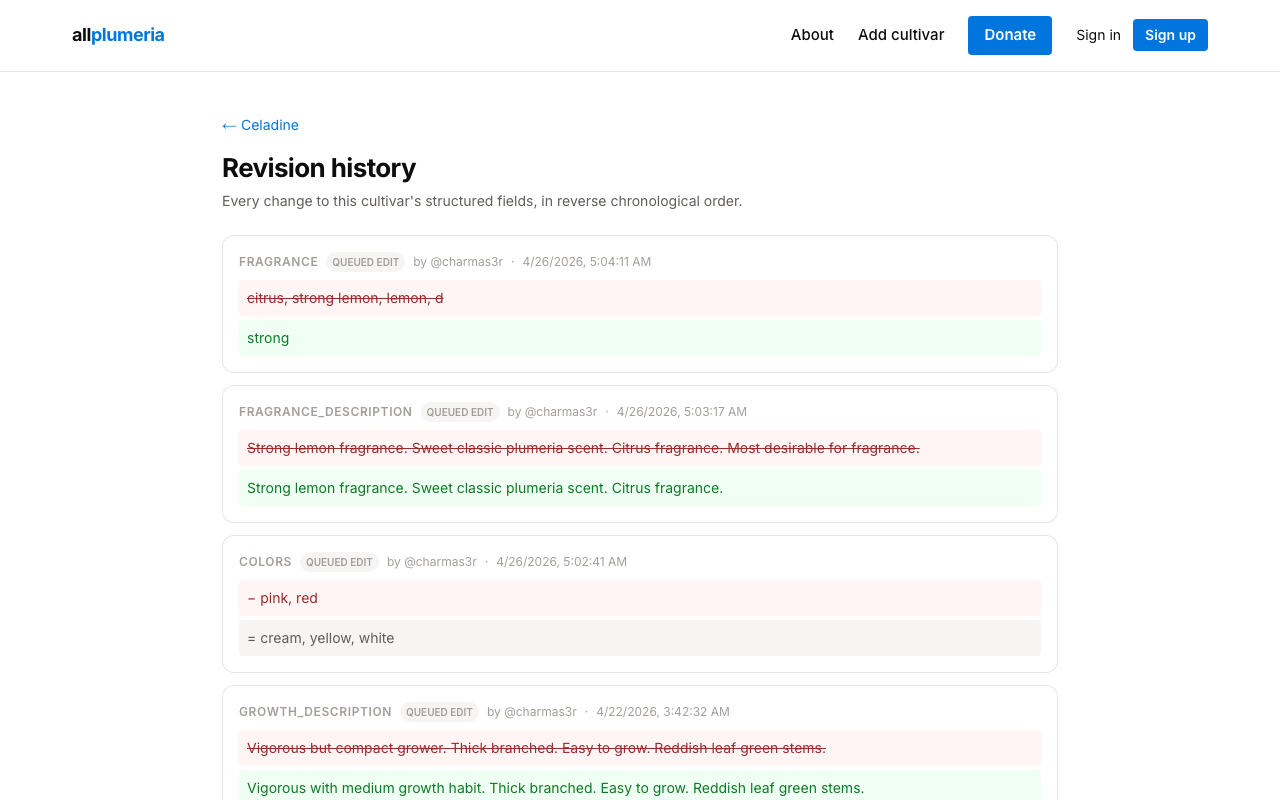
The View revision history link above the References block opens a chronological log of every approved change to that page, the contributor, and a diff. Admins can roll back to any prior revision.