Uploading photos
A few good photos lift a page from data to genuinely useful. Here's how to upload them, where they show up, and how flagging works if something's wrong.
Where to find the upload entry
On any cultivar page you'll see an Add photos pill near the title (or in the empty placeholder if no photos exist yet). It's only visible if you're signed in.

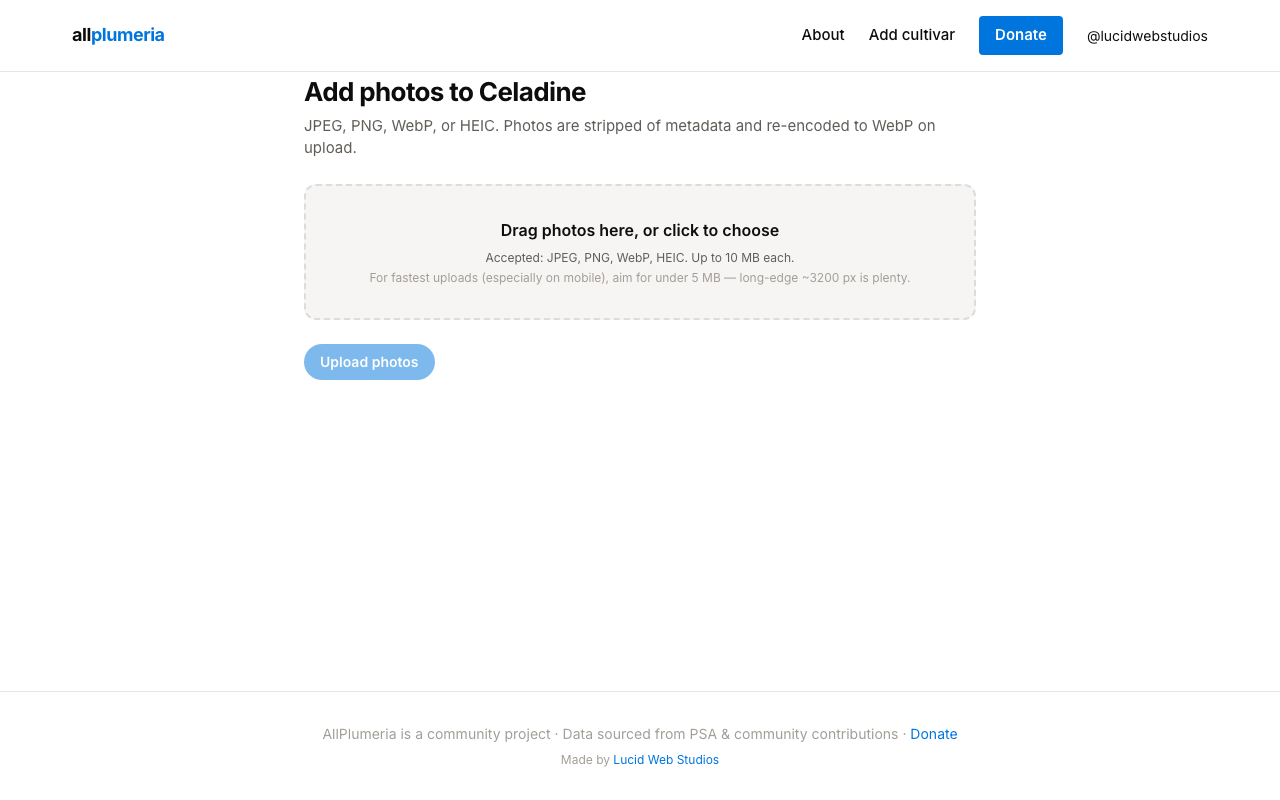
- 1Click ‘Add photos’You'll land on an upload form for that specific cultivar.
- 2Choose a sectionPick which section of the page the photo belongs to: General, Appearance, Bloom, Growth, or Cultivation. Section-specific photos appear inline next to that section's text. General photos go in the hero gallery and overflow gallery.
- 3Pick your image and write the metadataFile goes in the file picker. Add an alt text (a one-sentence visual description for accessibility), an optional caption(context like "morning bloom after rain"), and an optional location.
- 4SubmitVerified breeders of the cultivar see their photo go live immediately. Everyone else's photos enter the admin queue and get published after review.
Limits & formats
- Max file size: 10 MB per photo. Anything larger is rejected at the picker with a red error on that row before you can submit.
- Accepted formats: JPEG, PNG, WebP, and HEIC. The server strips metadata and re-encodes everything to WebP on upload, so what you store is normalized regardless of what you uploaded.
- Recommended size: long edge of 1600 px or larger. The server resizes anything bigger than ~3200 px down — sending a massive original just slows your upload without improving the displayed photo.
- For mobile uploads: aim for under 5 MB per photo so things move quickly over cellular networks.
What makes a good photo
- Clear focus on the bloom (or the foliage/habit if it's a section photo for Growth or Foliage).
- Natural light beats indoor flash.
- One bloom or one cluster per shot — busier compositions are great for the hero rail but harder to use as identification photos.
- Honest captions. "Mid-afternoon, slightly faded" tells the reader more than a generic title.
- No text on the image. Skip overlaid names, watermarks, or labels — cultivar identification is already clear from how photos are used on the product pages themselves. Put any context in the caption field instead.
- Filters are discouraged.The goal is an accurate record of the bloom's true color and form, so avoid saturation boosts, color tints, and stylized effects.
- No AI-generated images. Only real photographs of real plants are accepted. AI-generated or synthetic images will be rejected in review.
Where photos appear
The hero gallery at the top of the page shows up to a few prominent photos in a rail. Section strips appear inline below their section heading. Anything beyond that falls into the overflow gallery at the bottom.
Flagging a photo
Every published photo has a small flag affordance. Use it if the photo is misidentified, low-quality, or mis-credited. The flag opens a short form asking what's wrong.

Flags go to the admin photo-flag triage queue. Admins can resolve the flag in a few ways: dismiss (no action), unpublish the photo, mark as primary (when an alternate photo is clearly better), or ask the uploader to resubmit with corrections.
Common upload questions
My upload failed silently — what happened?
Nine times out of ten it's the 10 MB file-size cap. Check the row in the upload form for a red error; if one of your photos is oversized the whole submission won't go through until you remove or shrink that file. If every file is under 10 MB and the upload still stalls, refresh and try again — your network probably dropped mid-transfer.
How do I remove a photo I uploaded?
Contributors can't directly delete a published photo. Use the flag affordance on the photo and ask an admin to unpublish it, with a short note explaining why. If your photo is still pending in the review queue, open My submissions and you can withdraw or revise it from there.