Browse & search
Three ways to find cultivars: search box on the homepage, browse-by-color tiles, or the full catalog with filters.
The homepage
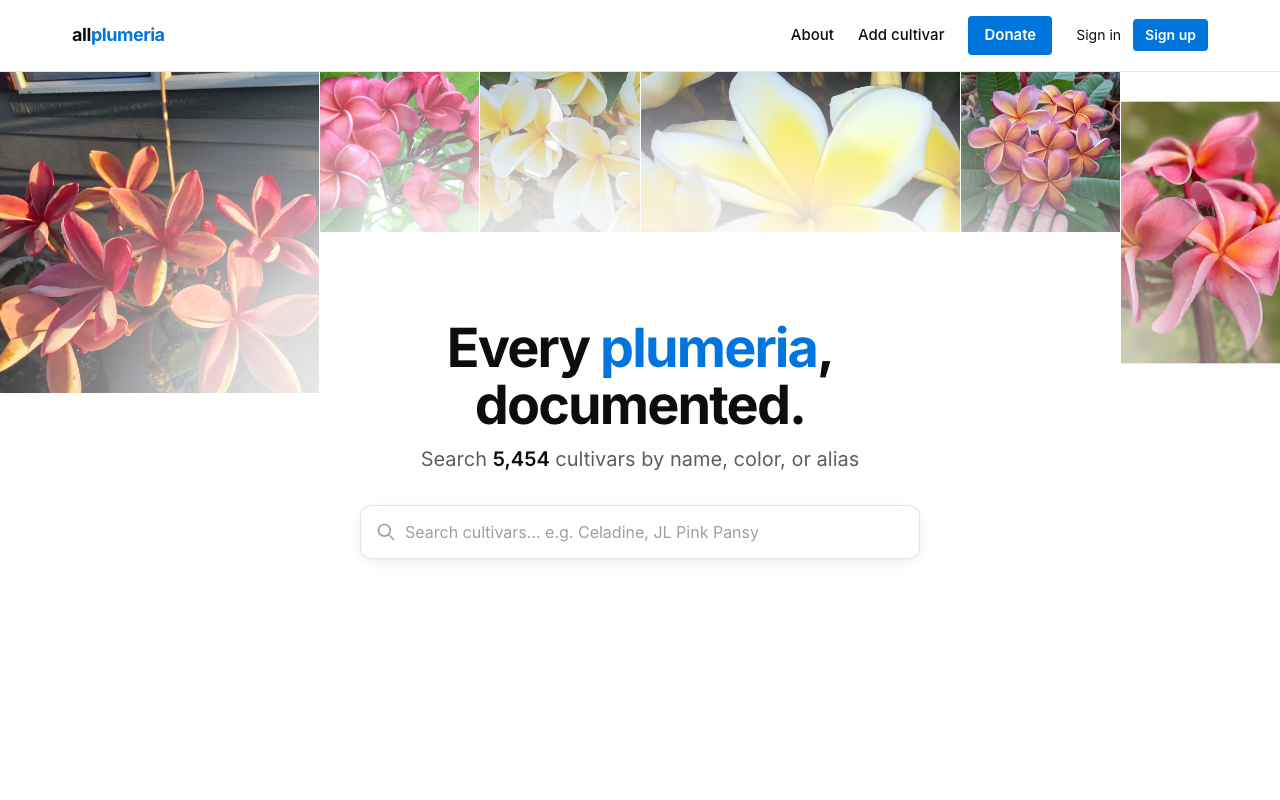
The homepage opens with a hero search and a tile per color. The search box is your fastest way in — it autocompletes against every cultivar name and alias on the site.
Searching by name or alias
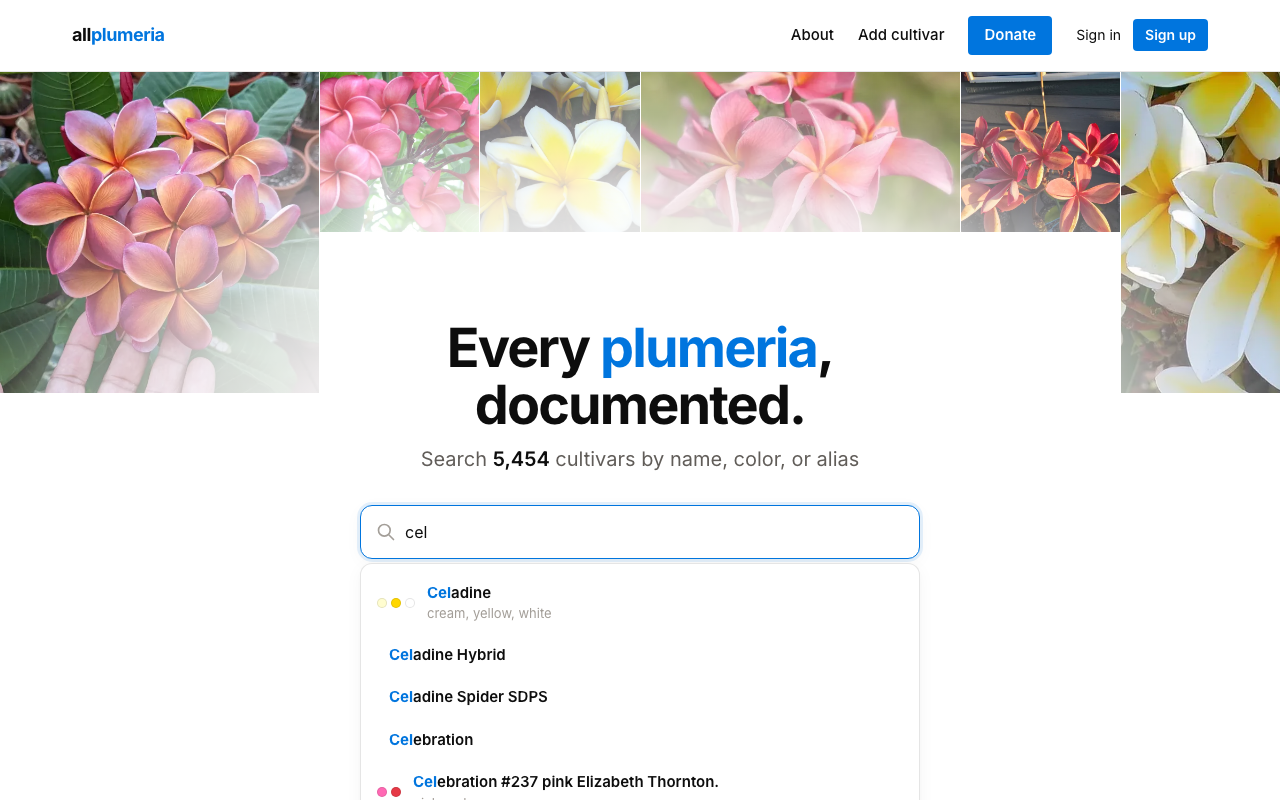
Start typing in the homepage search bar (or in the catalog search field) and matching cultivars appear instantly. Aliases are first-class — searching for an old or alternate name will find the canonical cultivar even if the names look different.
The cultivar catalog
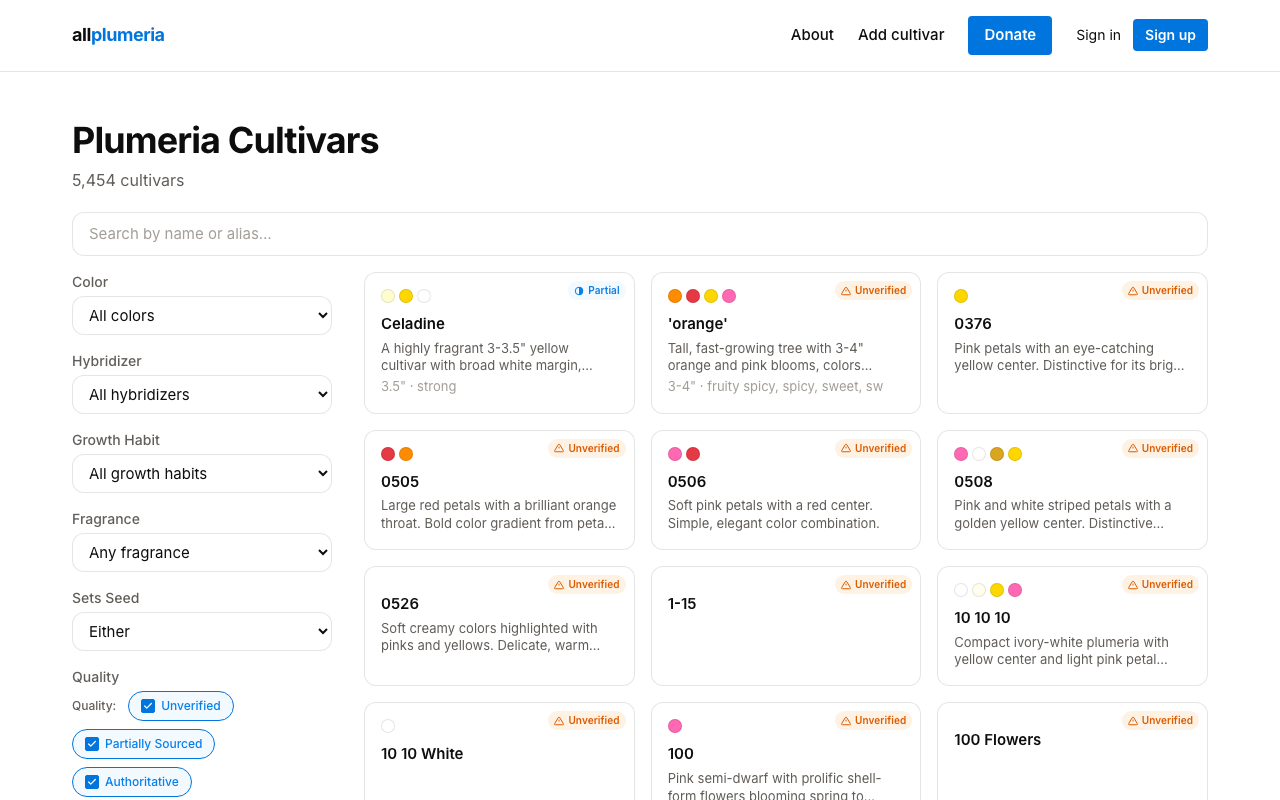
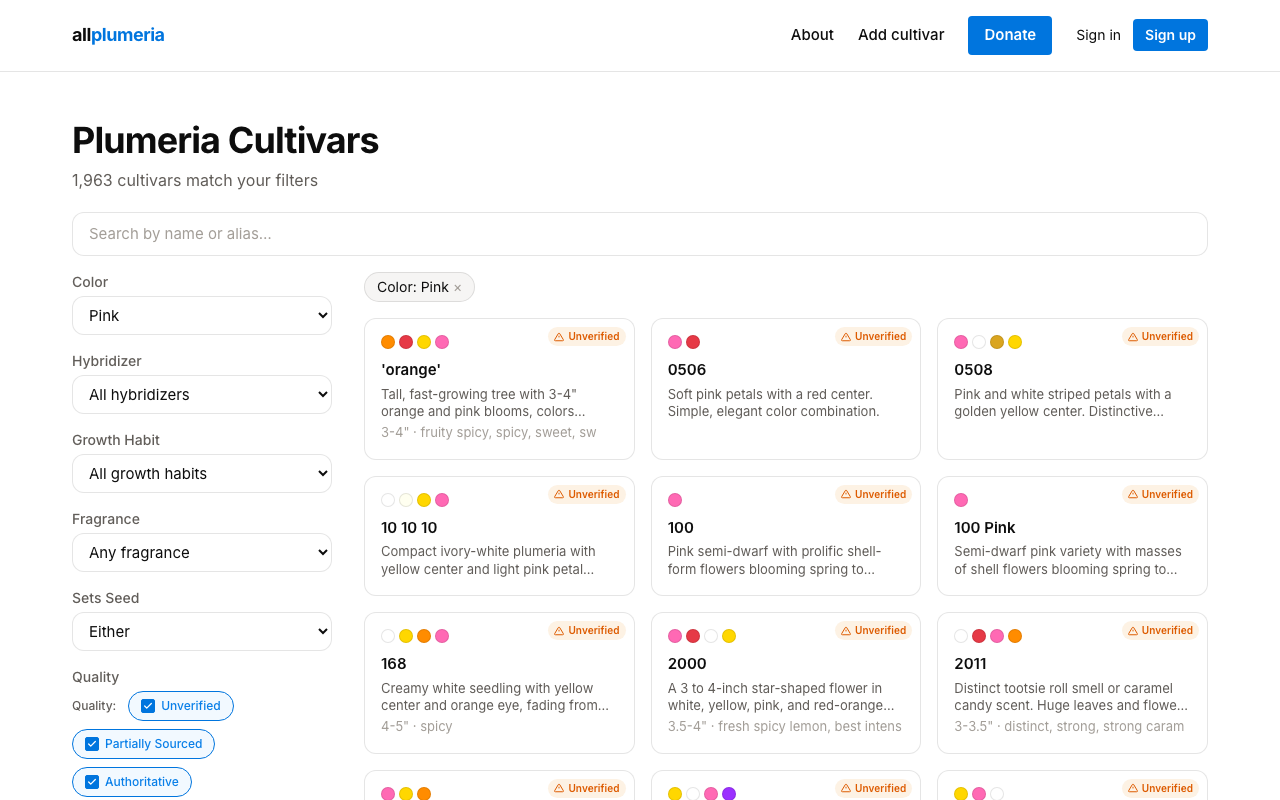
Click a color tile or open /cultivars to land in the full catalog. The header shows how many cultivars match your current filters, and the sidebar lets you narrow the list.
Filters
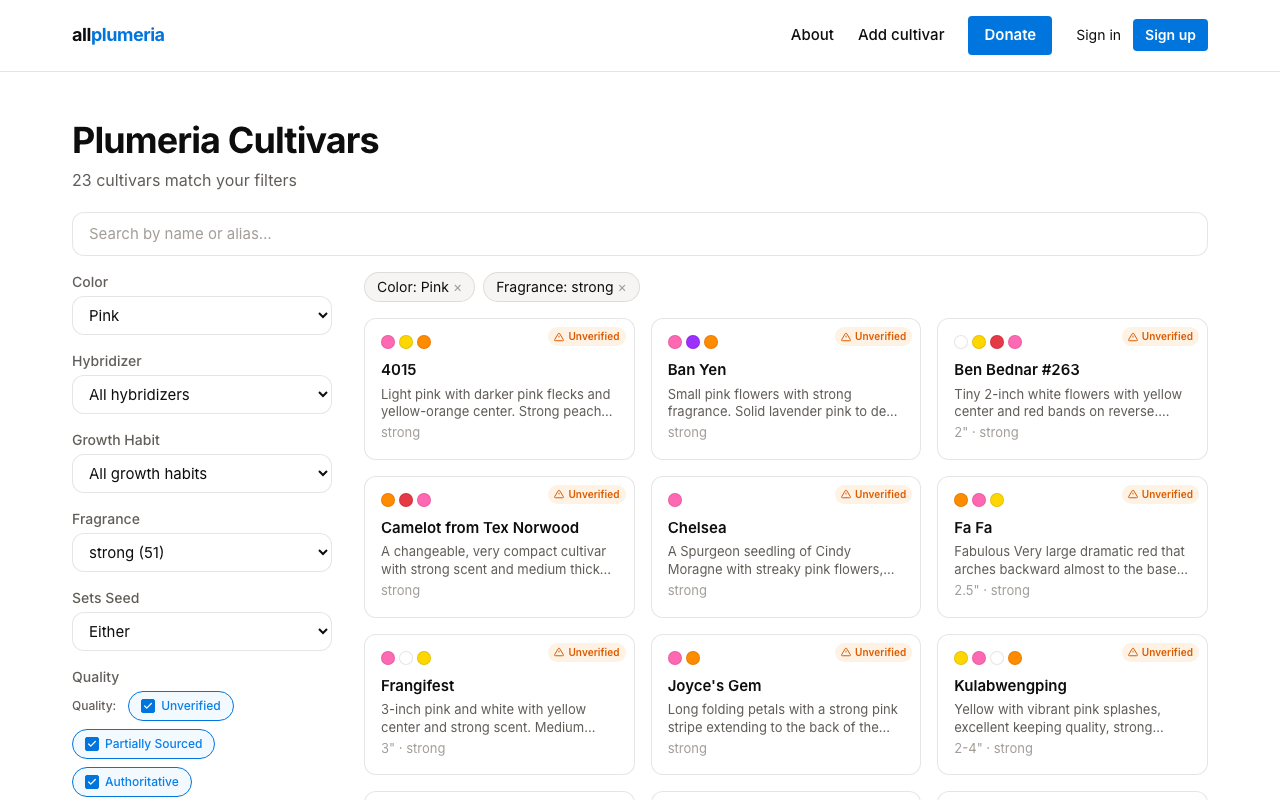
The filter sidebar groups everything you can narrow by:
- Color — the dominant petal color(s).
- Hybridizer — the breeder credited with the cultivar.
- Growth habit — compact, dwarf, standard, etc.
- Fragrance — qualitative descriptor.
- Sets seed — yes / no toggle.
- Quality tier — filter to only Authoritative or Partially Sourced entries when you want trusted data only. See Quality tiers.
Active filters appear as removable chips above the grid. URL parameters reflect the active filter set, so any catalog view is shareable as a link.
Browsing by color
Each color tile on the homepage links to a curated page under /color/<color>showing every cultivar tagged with that color. This is often the fastest way to compare options when you're shopping for a particular look.
Aliases & AKA names
Many cultivars are sold under more than one name. The wiki keeps a canonical name and an aliases list on every cultivar page. When you search for an alias, you land on the canonical page — the old name still works and is shown in the alias section so you know why.
- 1Try a name you know — even an old oneSearch bar accepts any alias. The site resolves it to the canonical cultivar and shows that page.
- 2Read the aliases list on the pageAliases are listed under the title. Each one has a small label showing whether it's a misspelling, a former name, or a different name in another market.
- 3Suggest a new alias if one is missingSee Editing cultivar pages for how to propose a new alias.